Create and manage HMIs
Create an HMI at a location
- Open the location and click the + tab (you need the account's Create HMI role).
- Fill in the Create New HMI View dialog:
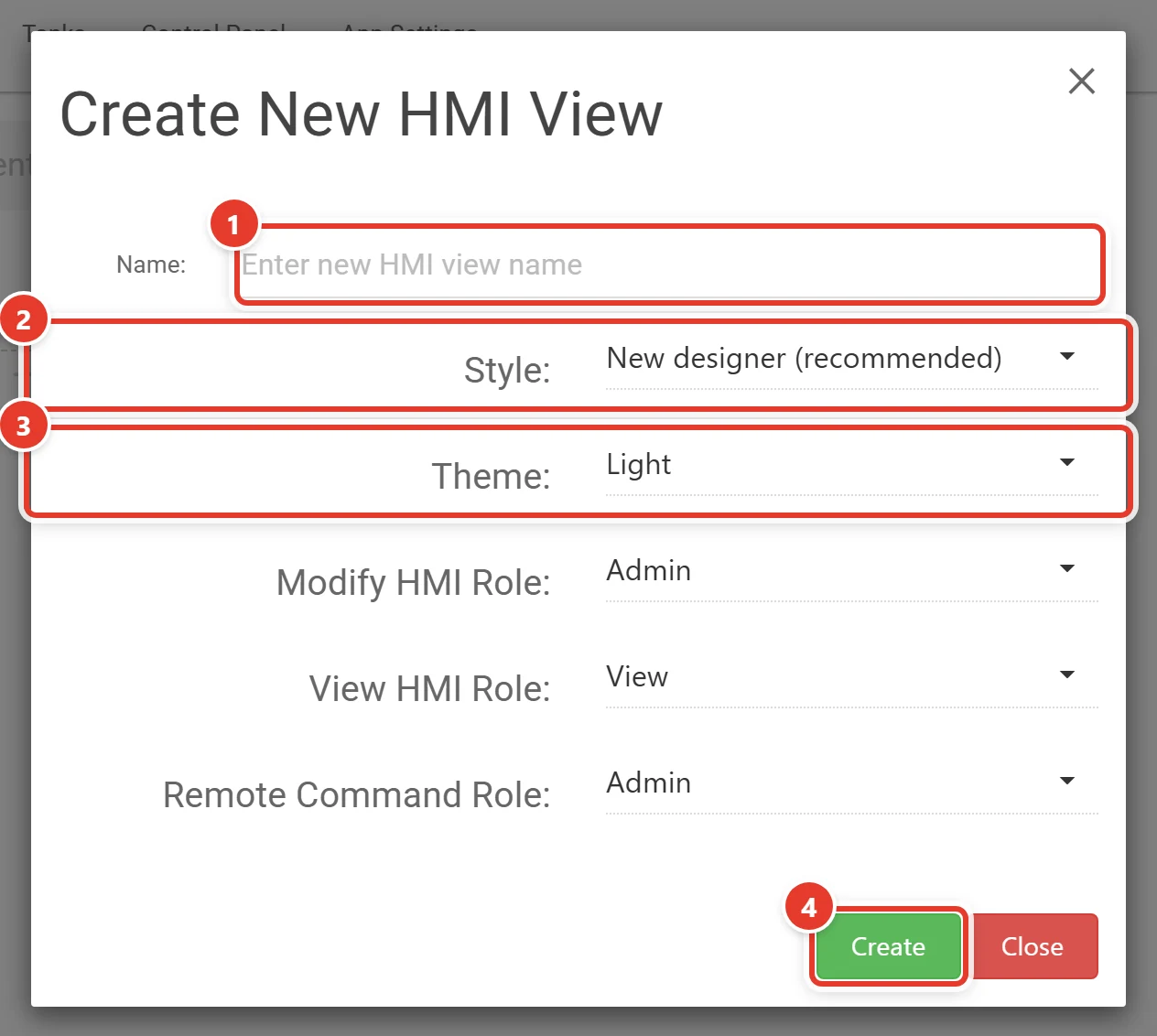
- Name: the label on the HMI's tab.
- Style: New designer (recommended) makes a designer HMI. Classic makes a classic HMI on a background picture.
- Theme: light or dark. You can change it later.
- Create opens the new HMI in the designer.
The Modify HMI Role:, View HMI Role: and Remote Command Role: decide who can edit the HMI, see it, and operate equipment from it (see Who can do what).
Next: add equipment and connect its tags, or drop a ready-made panel.
Account HMIs
An account HMI is a tab on the main Locations page, next to Map and Table. It can show tags from every location in the account, so it's the place for a system overview: every well and its level, every lift station and its pumps, on one screen.
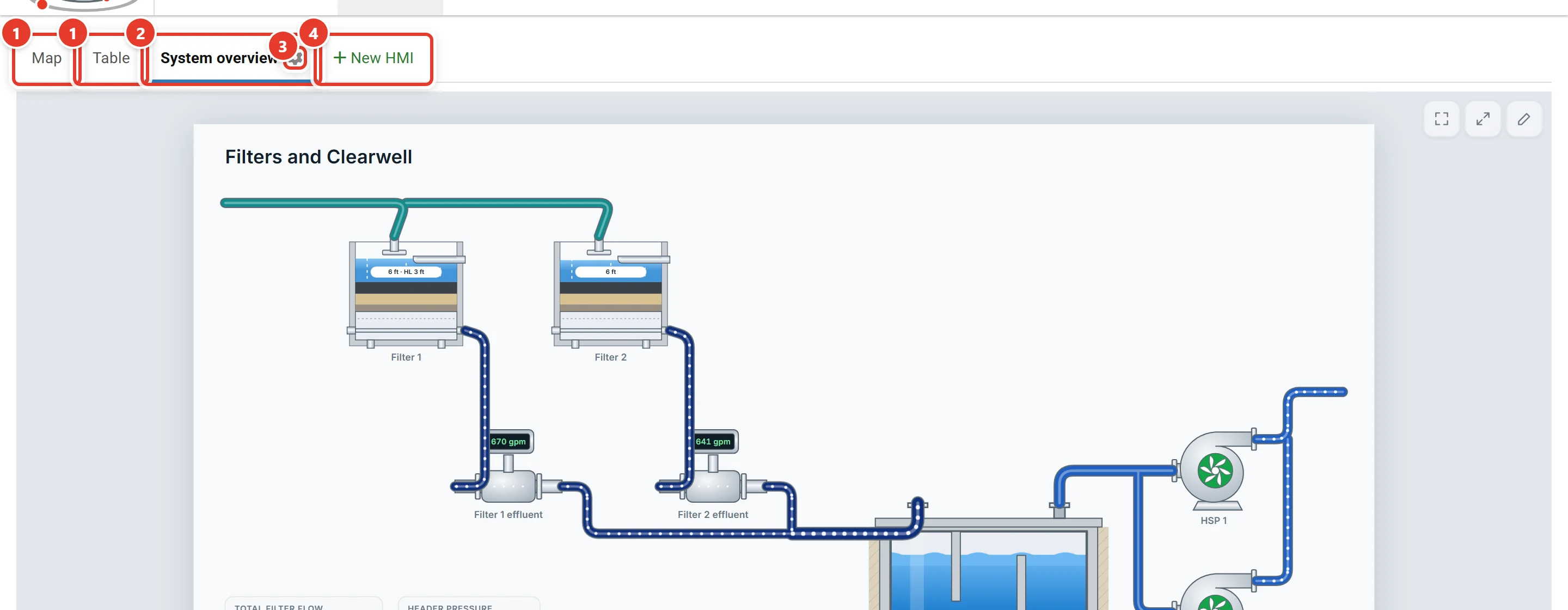
- Map and Table, as before.
- One tab per account HMI you can view.
- The gear on the open tab: name, roles and tab order.
- + New HMI (with the account's Create HMI role).
On a phone the tabs become a drop-down list, with + New HMI at the bottom and the gear next to it.
Create an account HMI
- On the Locations page, click + New HMI.
- In New account HMI, enter a Name (for example Plant overview), pick a Theme, and the View HMI role, Modify HMI role and Remote command role. (Everyone) at the top of each list means anyone in the account.
- Click Create and open the designer.
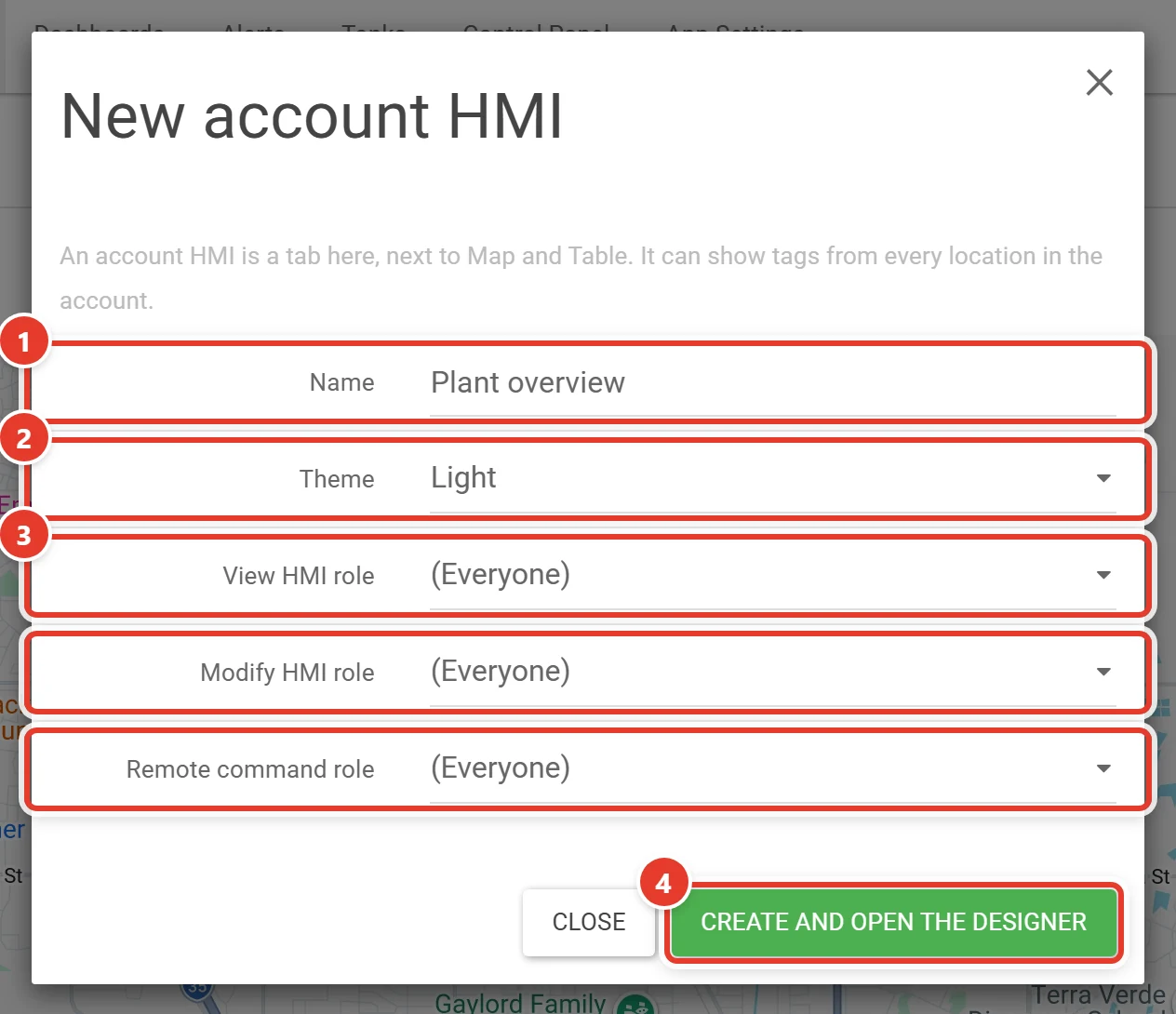
- Name: the tab's label.
- Theme.
- The three roles.
- Create and open the designer.
In the designer, an account HMI's tag lists show the devices at every location. Two boxes above each list narrow it down: a location list (All locations, or one location) and Find a tag, which searches location, device and channel names. Tags are labelled Location › Device so you can tell two wells' Level channels apart.
Its alarm list shows the open alarms of every location in the account.
Change an account HMI's name, roles or tab order
Open the HMI's tab and click the gear on it (Name, roles and tab order). In HMI settings:
- change the Name and the three roles, then click Save;
- Move left / Move right moves the tab (needs the Create HMI role, and more than one account HMI). Everyone sees the tabs in this order.
Delete an account HMI
In the same dialog click Delete HMI (needs the Create HMI role) and confirm. Its drawing is removed for everyone and this can't be undone.
Rename, change the roles of, or delete a location HMI
Click the gear on the HMI's tab on the location page. The Edit \<name> HMI dialog has the Name: and the three roles (click Save Changes), Duplicate HMI and Delete HMI. It's the same dialog for both kinds of HMI (see Classic HMIs).
- Duplicate HMI makes a second tab at the same location with a copy of the drawing.
- Delete HMI removes the tab and its drawing for everyone. It can't be undone. If you might want it again, restrict its View HMI Role instead.
Copy an HMI to another location
Build the HMI for well #1 once, then copy it to wells #2 and #3: the copy's tags point at the devices at the new location.
- Open the HMI in the designer and click HMI settings (the gear in the top bar).
- Click Copy to another location… (needs the HMI's Modify role; for location HMIs).
- In Copy to another location:
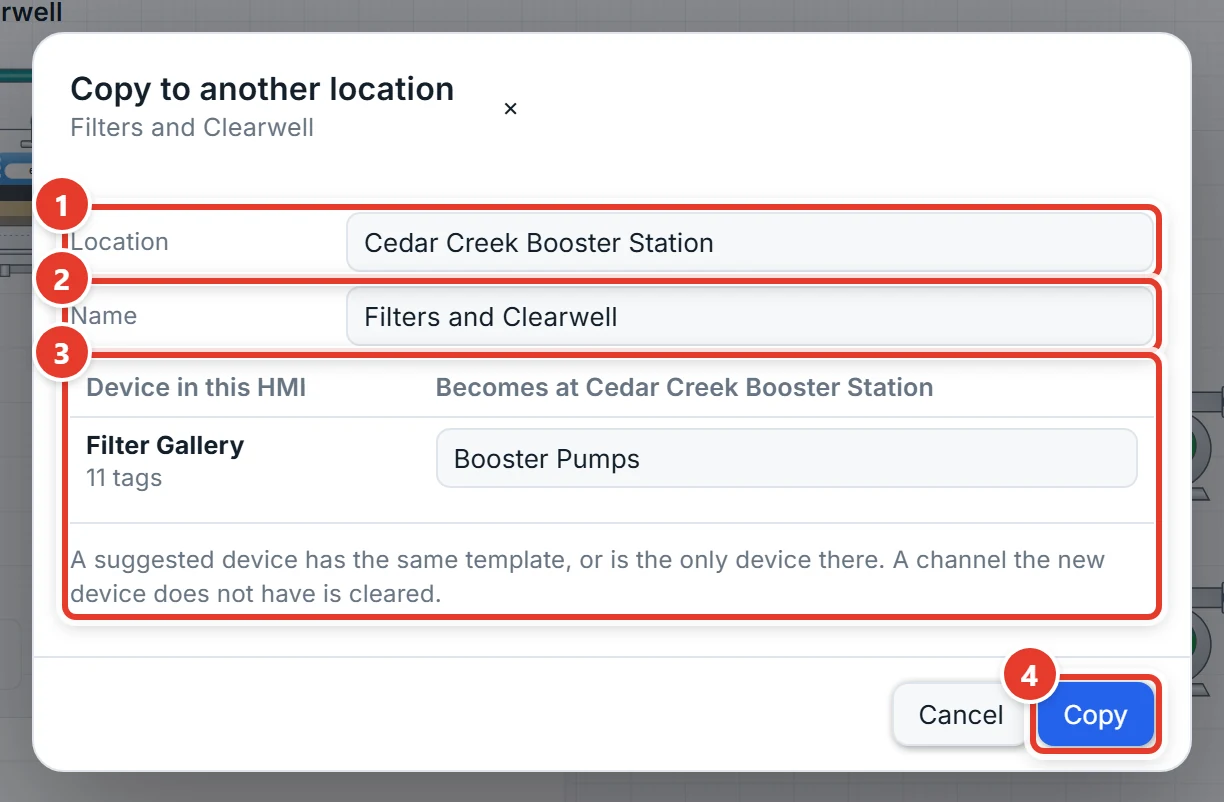
- Location: any location in your account.
- Name of the new HMI. If it contains the old location's name, that part changes to the new one.
- For each Device in this HMI, the device it Becomes at the new location. Whisker suggests the device with the same template, or the only device there. Choose — none: clear its tags — to leave that device's tags empty.
- Copy.
Unsaved changes are saved first. The copy gets the same roles and theme, and tags keep their channel numbers, which is right for identical sites. Captions that were the old location's or device's name are renamed to the new ones.
When it's done, HMI copied lists anything to check:
- Channels the new device does not have (cleared): connect those by hand.
- Same channel, different name (check these): the new device has a channel with that number but a different name, so it may be something else. (A -1 that some controllers add to names doesn't count.)
Click Open the copy to check it, or Stay here.
One HMI per site, or one for all of them?
For several identical sites you can either copy one location HMI to each site, or build one account HMI with a panel per site. Copies are best when each site needs its own detailed screen; an account HMI is best for an overview of all of them.