Run mode: using an HMI
Run mode is the HMI as operators see it: live values, moving equipment and the controls they're allowed to use. People who can only view an HMI always see it this way; people who can edit it switch with Edit / Run in the designer.
Watching an HMI on its tab
On its tab (on a location page, or an account HMI on the Locations page) an HMI uses all the room it has: there are no bars above or below it. Three small buttons float in its top-right corner, and a dot in the bottom-left corner shows whether its values are live.
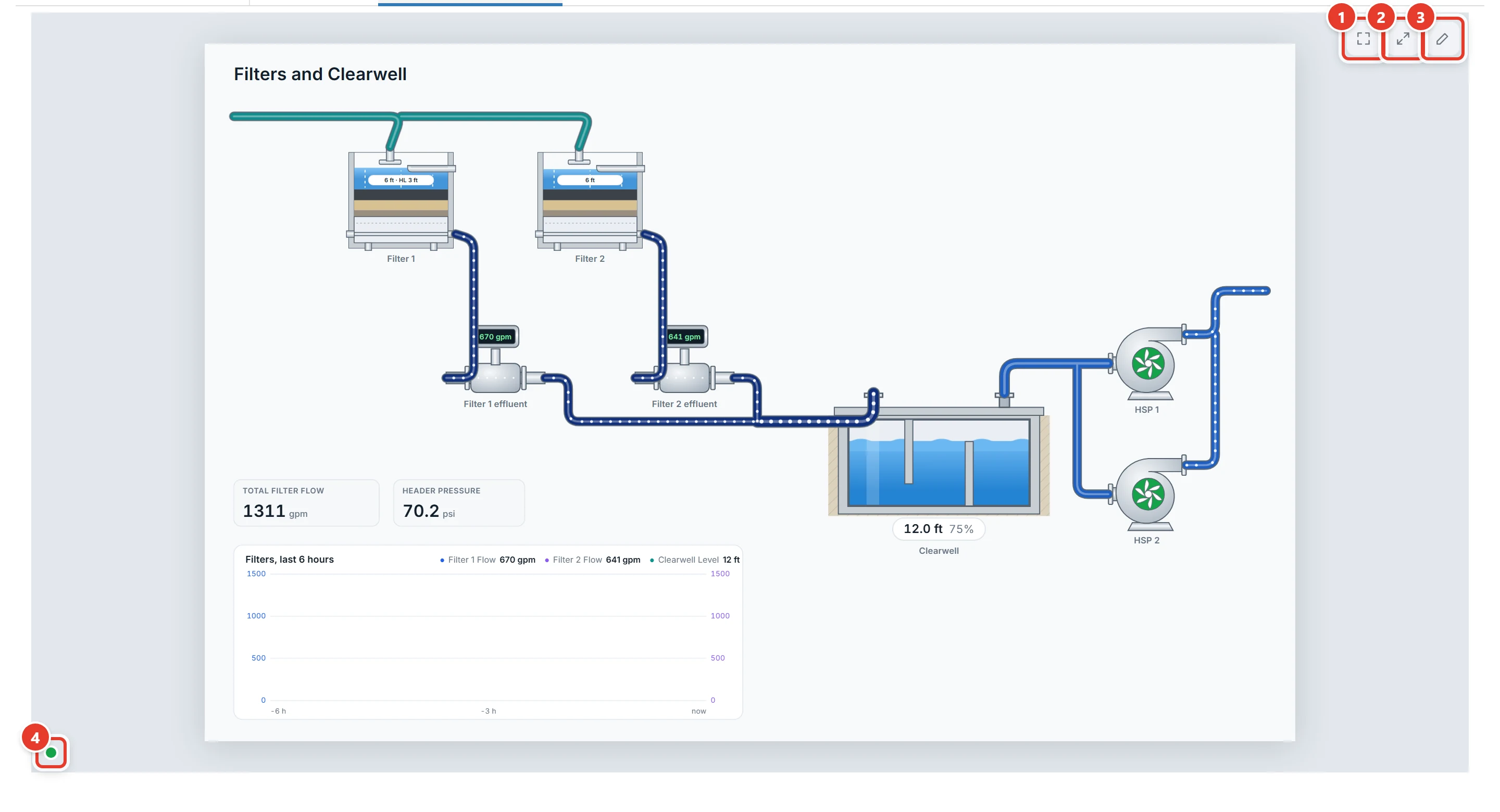
- Fit fits the whole drawing to the screen.
- Full screen: the HMI fills the whole screen, without the portal's menu and tabs. Press Esc or click the button again to come back.
- Open designer (the pencil), if you hold the HMI's Modify role. Not shown on phones.
- The live dot: green when values are coming in, amber when no new values have arrived for half a minute, red when live values can't be loaded. Click it to see when the values last came in.
Values refresh every 10 seconds. Full screen is handy on a tablet mounted in a control room. On an iPhone, the HMI covers the page instead of the whole screen; the button and Esc work the same way.
What the drawing tells you
- Equipment colour: the running colour while running (green, or red with the electrical running colour in HMI settings), and a pulsing fault colour when faulted.
- Pumps and blowers turn while running; tanks fill to their level; pipes show water moving when their Flowing when tag is on (see Pipes).
- A small H, O or A badge on equipment shows Hand, Off or Auto, and SEAL a pump's seal failure.
––instead of a value means no reading has come in yet.
Details cards
Click a piece of equipment (a pump, valve, tank, filter...) for its details card: all its tags and their latest values, and, if you hold the HMI's Remote Command role, its commands: buttons such as Start / Stop or Open / Close, and a slider for a speed or position.
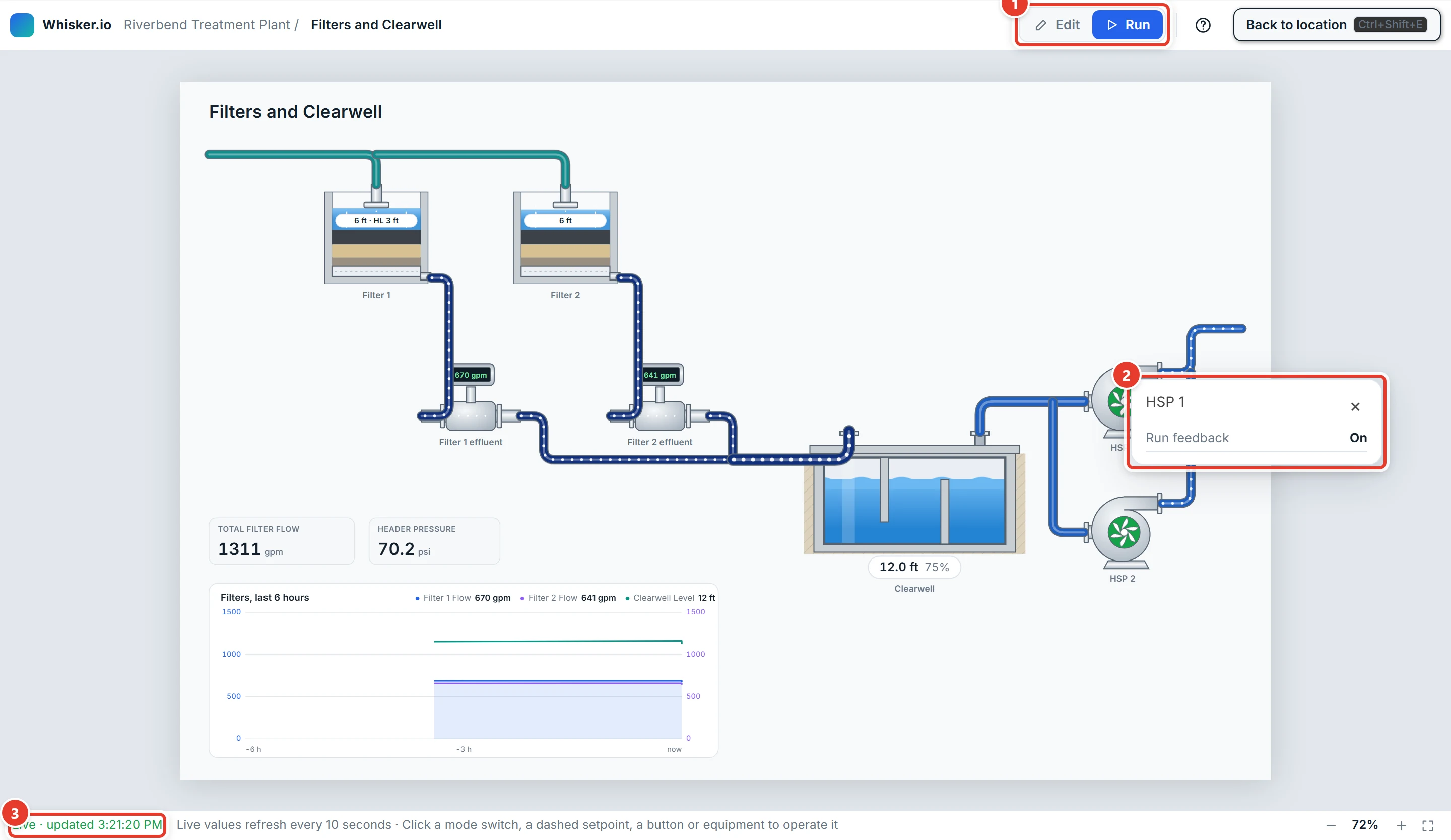
- Run shows live values.
- The details card of the pump, with its commands.
- When the values last came in.
Changing a value
Switches, toggles, push buttons and setpoints each work on one writable tag, such as a pump's Pump 1 AHO. The control always shows the tag's latest reading. When you pick a new value, Whisker asks first (for example Change Pump 1 AHO from Auto to Hand?); nothing is sent until you click Send. To change a setpoint, click it (or its pencil), type the new value and press Enter. A slider sends one command when you let go of it.
The command then goes through the same command queue as the rest of Whisker:
| What you see | What's happening |
|---|---|
| Queued | The command is waiting to go out to the equipment. |
| Sending | It has been sent; Whisker is waiting for the equipment to acknowledge it. |
| Confirmed | The equipment acknowledged it. The tag shows the new value at its next reading, usually within a minute. |
The control has a dashed amber outline until the new reading arrives; then the new value shows normally. Push buttons and Start / Stop commands are momentary, so they're done as soon as the equipment acknowledges them. If the equipment doesn't acknowledge the command, a message says so and the control keeps showing the real reading: nothing changed.
Without the HMI's Remote Command role, controls show their value but a click says You don't have the command role for this HMI.
Every command is recorded in the location's History tab and the audit log, with your name.
The settings button
A Settings button keeps commissioning settings (start delays, alarm limits, PID settings...) off the main screen. Click it for a table of Setting, Now (its current value) and Change to, with a Set button per row. Changing a setting needs both the HMI's Modify and Remote Command roles; without them the table is read only for your login. Each change asks first, like any other command.
The alarm list
An Alarm list shows the open alarms: on a location HMI, those of the location's devices; on an account HMI, those of every location. Each shows the alert's name and when it started. The header counts the unacknowledged ones; No active alarms when there are none.
Click Ack to acknowledge one from the HMI. It's recorded with your name and the note Acknowledged from the HMI, the same as acknowledging it anywhere else (see Acknowledging alerts).
Trend graphs
A trend graph shows up to six tags over the Time shown chosen in the designer: the last hour, 6 hours or 24 hours. It draws the stored history first, then adds live points as they arrive, so it's full as soon as the HMI opens. Each pen has its own colour and can have its own line name in the legend. For longer periods or to export data, use Dashboards or the location's Download History.
On a phone or tablet
- One finger drags the drawing around; two fingers pinch to zoom. The page itself doesn't zoom.
- A tap works like a click: tap equipment for its details card, tap a control to change it.
- Fit brings the whole drawing back; Full screen gives the HMI the whole screen.
- Editing is for a computer: the designer's Open designer button isn't shown on phones.
HMIs from the web portal aren't in the Whisker mobile app; open the web portal in the phone's browser.